
A fourth door into the same office
Until today E1pi had three ways in, all for people inside the company: the app, Microsoft Teams and WhatsApp. Integrate opens a fourth door, for your customers, on your own website. A visitor types where is my order, show my last invoice or I need a quote into a small chat on your site. The question travels by webhook to the E1pi server in your office, the same harness that keeps your books answers it from your own data, and a person on your team approves before anything leaves.
The objective is simple. Most company websites answer those three questions with three screens: a tracking form, a customer portal, a quote-request form that ends in an email. Each one is a small project to build, a small chore to maintain, and a dead end the moment the customer asks something slightly different. One conversation that already knows your orders, invoices and stock replaces all of them, and it is kept current by the same E1pi your team runs every day.
Your customers ask. A person on your team approves. On your own site.
Everything is live at e1pi.com/integrate.html: every design working on the page, the customiser, the snippet and the webhook field.
An extension of the harness, not another bot
Integrate is not a separate chatbot with its own brain and its own copy of your data. It is the multi-user AI harness you already run, reached from one more place. That matters in four ways:
- Same data, same skills. The website assistant reads the same live ERP, the same stock, the same documents and the same company skills your staff use. Nothing is exported, synced or copied to a vendor's cloud.
- Same sessions, same feed. A website conversation is a session like any other. It shows up in the team's activity feed, a colleague can open it with the full context, and a group can watch it the way they watch each other's work.
- Same admin control. The admin decides which skills and tools the website assistant may use, sees every call it makes, and can switch it off.
- Same answers. Replies stream back to the visitor as full HTML, Pipe HTML included: a tracking card, an invoice table, a document list, not a wall of text.
Connected by one webhook
A website connects to your E1pi with a single URL. Ask your E1pi, in a sentence, create a website chat key for www.yourcompany.com, and it answers with the webhook URL for that site. Paste it into the Go live field on the integrate page and from then on every visitor message goes to your own E1pi server, and every reply comes back from it. Nothing touches a third party on the way.
Until the webhook is set, the chat on your page gives demo replies, so you can design, test and show it around before anything is connected. There are no cookies and no third-party calls: nothing leaves the visitor's page until you decide where it should go. From your own code, E1PI.open(), E1PI.send("…") and E1PI.setTheme("dark") do what their names say, and any link to #e1pi opens the widget.
Five designs, live on the page
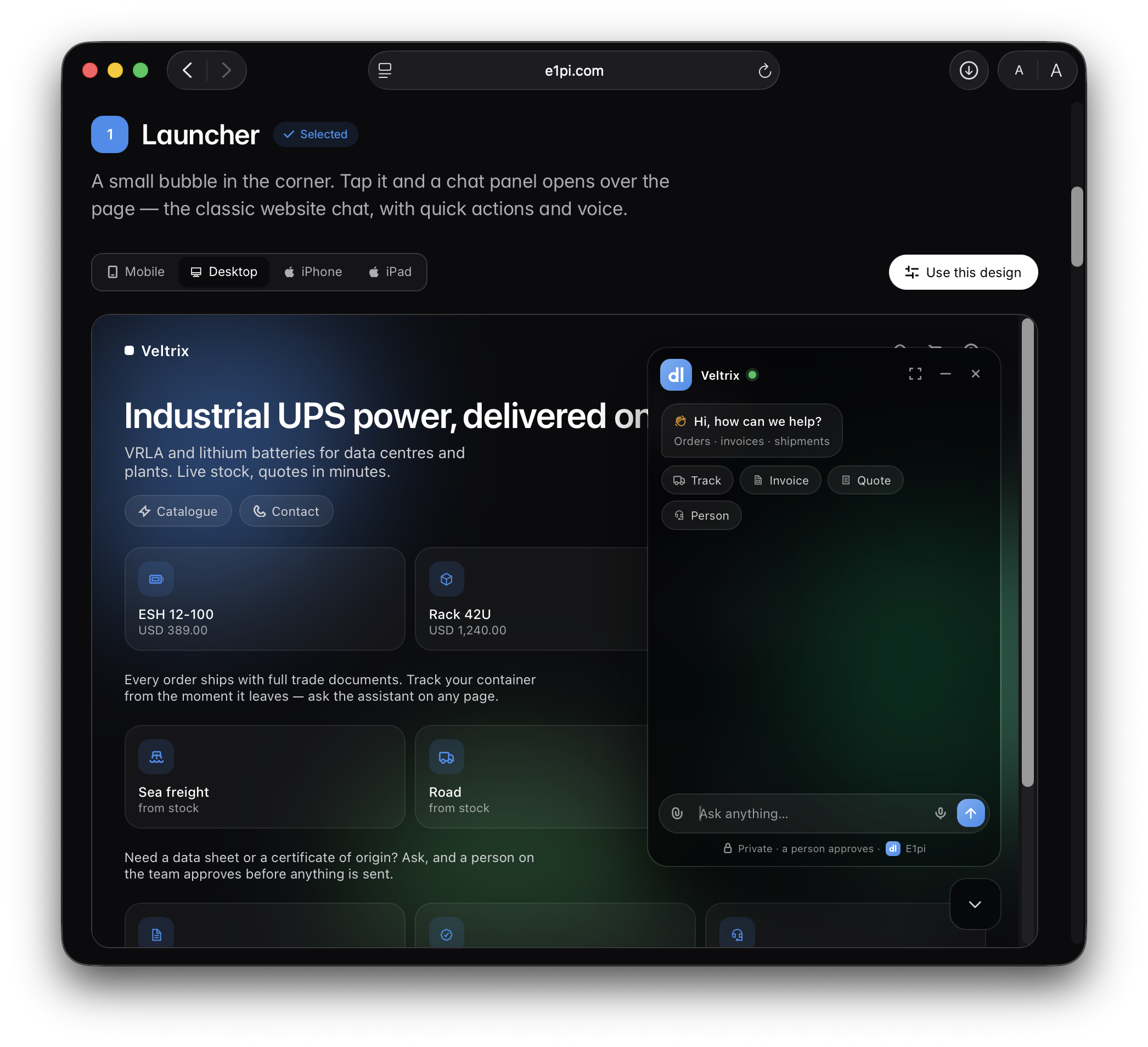
Websites differ, so the assistant comes in five shapes. All five are live on the integrate page: tap, type and speak in any of them, and switch each between Mobile, Desktop, iPhone and iPad before you choose.
- Launcher. A small bubble in the corner. Tap it and a chat panel opens over the page, with quick actions and voice.
- Dock. A slim rail on the edge of the page that slides a full-height panel in. Stays out of the way on product and catalogue pages.
- Ask bar. A search-like pill at the top. Click it or press ⌘K and a spotlight opens with quick actions and the conversation.
- Sheet. A bottom sheet that peeks above the fold and pulls up to half the screen. Made for phones and voice-first visitors.
- Inline. Sits inside your content, under a product title or on a support page, and grows into a conversation when used.
If your iPhone or iPad app shows your website in a web view, the assistant is already there too: same snippet, nothing extra to build.
Make it yours, then copy one snippet
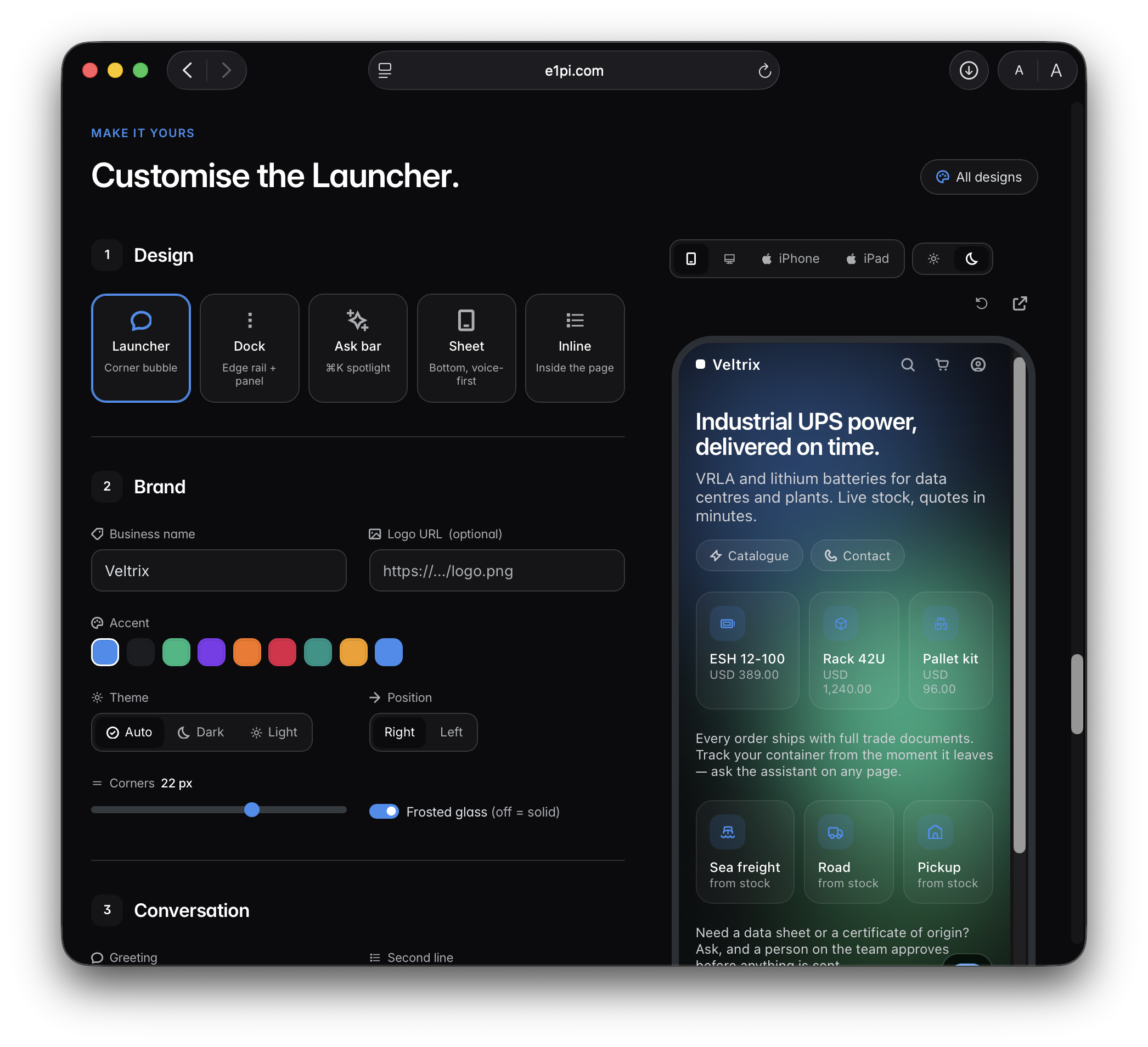
The customiser walks through four steps: design, brand, conversation and behaviour. Business name, logo, accent colour, light or dark, corner radius, frosted glass or solid, left or right. The greeting, the second line, the placeholder, up to five quick actions with the question each one asks. Voice and file attachments on or off. Whether it opens by itself, where the sheet starts, the ⌘K shortcut, whether it sticks to the top while scrolling and remembers the conversation across pages. The preview beside the form changes as you do.
When it looks right, copy the snippet and paste it just before </body> on every page, or once in your site's footer template. That is the whole install, on WordPress, Shopify, Webflow or plain HTML. Inline needs one more line, a <div id="e1pi-inline"></div> where the assistant should sit. A link to the finished setup can be shared with whoever maintains the site.
A person approves, always
The rule that runs the rest of E1pi runs here too. The assistant drafts; a person on your team approves before a quote, a data sheet, an invoice copy or a certificate goes to a customer. The visitor sees it written under the composer: Private · a person approves. For the routine questions, where is my order, what did my last invoice say, the answer comes from your books and your team sees the conversation in the feed. For anything that commits the company, someone taps Approve first.
It is not AI versus people. It is your people with E1pi, answering customers faster, versus your competitor's people without it.
Try it today
Open e1pi.com/integrate.html, pick a design, make it yours and copy the snippet. The two-minute explainer is on YouTube, and the section on the home page shows every design side by side. To connect a site to your own E1pi, ask it for a website chat key; if you do not run E1pi yet, register for a demo and we will set it up with you.